
Fydo Logo
  • Pricing
Get a Free Demo
Loading
WhatsApp
Fydo Logo

Built for Shops

Loved by Shoppers.

Loved by those who sell. Loved by those who shop. Loyalty, the Fydo way : )

Get AI summary

Product

Loyalty ManagementWhatsApp MarketingCustomer CampaignsReferral

Solutions

Fashion & ApparelSalons & BeautyJewellery ShopsGrocery StoresRestaurants & Bars

Company

About usContact UsPartner with FydoTerms and ConditionsPrivacy PolicyRefund Policy

© Lfyd services private limited • All rights reserved

  1. Home
  2. Resources
  3. Guides
  4. Record a bill

How to record a bill at the counter

Three ways to record a purchase, and what your staff need to know. The same steps apply whether you use a QR or enter bills by hand.

Get a Free DemoAll guides

Before you start

What you need, and what you will be able to do.

  • Time10 minutes
  • LevelBeginner
  • SourceBased on the Fydo Partner app

You will need

  • The Fydo Partner app on the counter device
  • Your Fydo QR, if you use one
  • Your staff, for five minutes of training

You will be able to

  • Choose how customers pay and earn
  • Record a cash or card bill with a phone number
  • Know who on your team can do what

The steps

Follow them in order. Each step shows the real app screen where there is one.

In this guide
  1. 1Choose how customers will pay
  2. 2Static QR: scan, pay, done
  3. 3Cash or card: enter the phone number and the amount
  4. 4Dynamic QR: a QR for this exact bill
  5. 5Decide who can do what
  6. 6Check the day
  • Try the counter
  • Your checklist
1

Choose how customers will pay

There are three ways to record a purchase. Most shops use more than one.

  • Static Fydo QR. A simple scan-to-pay QR at the counter.
  • Cash or card. Staff enter the customer's phone number and the bill amount in the app.
  • Dynamic QR. A unique QR for every transaction.
Selling online too?
2

Static QR: scan, pay, done

Put your Fydo QR at the counter. The customer scans it with a phone camera or Google Lens and pays with any UPI app. The reward is applied according to your setup.

Best for shops that want a simple QR at the counter.

3

Cash or card: enter the phone number and the amount

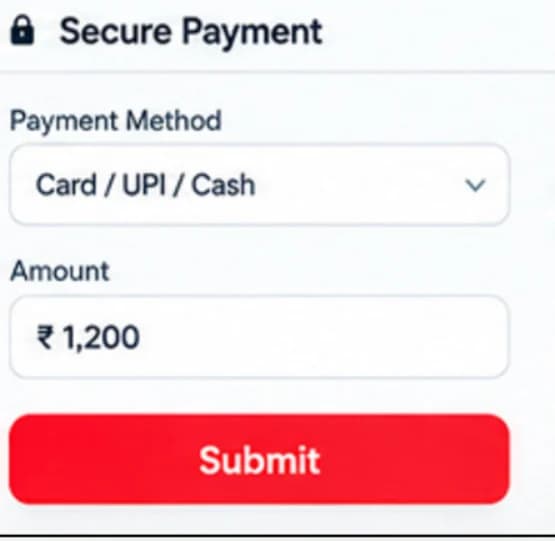
Open the app to collect payment. Enter the customer's phone number and the bill amount, choose the payment method (card, UPI or cash) and submit. The transaction is recorded and the customer's reward journey continues.

Read the number back

A wrong digit sends the reward to someone else. Ask the customer to confirm the number before you submit.

The Secure Payment screen, with payment method and amount fields.
4

Dynamic QR: a QR for this exact bill

Generate a QR for the amount. The customer scans it and pays, and the transaction is connected to their loyalty automatically. It suits shops that want every payment tied to a specific bill.

5

Decide who can do what

You can add your team to your Fydo account and give each person the access they need.

  • Owner or admin. Full access to everything in your Fydo account.
  • Store manager. Oversees day-to-day operations.
  • Staff member. Handles transactions and customer details, with limited access.
6

Check the day

At the end of the day, open the home screen. Look at today's collection, new customers and repeat customers.

Two entries

If you enter a bill in Fydo and also in your own billing software, the amount goes in twice. A discount worked out in Fydo must match the bill you print. Ask the Fydo team whether your billing software can connect.

Try the counter

Pick a customer, enter a bill and see the reward, the amount to collect and the WhatsApp message.

1. Find the customer by phone number

2. Enter the bill

You choose your own.

P
PriyaRepeat customer4 visits · last visit 12 days ago
Wallet after this bill₹142
Bill
Bill₹1,200
Reward applied−₹100
Amount to collect₹1,100
Cashback added to wallet+₹22
9:41
F
Fydo BasketBusiness chat
Thanks for shopping with us, Priya! ₹22 cashback has been added to your wallet. You saved ₹100 today.6:05 pm

Your checklist

Tick things off as you go. Copy the list to share it with your team.

Counter checklist for your team

0 of 8

Ticks are saved in this browser only.

Common mistakes

Easy to avoid once you know them.

  • Typing the wrong phone number

    The reward goes to someone else. Read the number back.

  • Skipping the number on small bills

    No number means no customer record, and no way to bring them back.

  • Forgetting the discount on the printed bill

    Fydo and your own bill must show the same amount.

  • Giving everyone full access

    Give staff only what they need.

  • Hiding the QR

    A QR behind other things will not be scanned.

Questions about this guide

Keep going

The next step in the learning path.

Previous guideHow to plan your first loyalty programmeNext guideHow to read your customer data

Related product pages

QR loyalty and earning rulesJoin with a scan, then earn by visits, spend or occasions.Loyalty ProgramsLoyalty program software for shops: choose cashback, points, rewards, QR loyalty and referrals.Integrations & InfrastructureHow loyalty connects to billing, WhatsApp and your other tools.

Want to see it with your own shop?

A demo is the fastest way to see how these steps fit your business.

Back to all guides